NOMI (Chisel)
- Sculpted Prim Relief Maker -
by Yuzuru Jewell(KANAE PROJECT) produced by youwith. 10/29/15
NOMI makes the relief objects for Second Life from the picture.
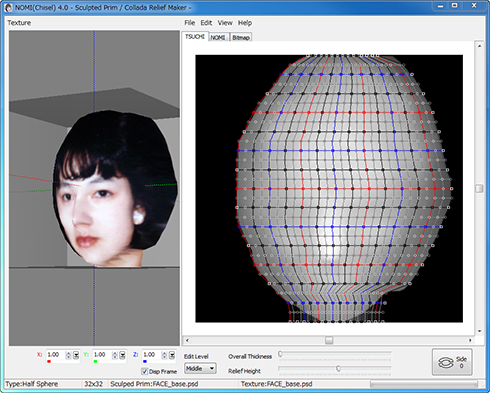
NOMI is the software which simply makes sculpted prim and collada file for the mesh of Second Life with a relief surface from one picture using the brightness of it. A preview can be checked before uploading to SL. Relief refers to variations in elevation similar to topographical maps.
From the original picture, the software outputs a sculpted prim picture and a texture picture.
Moreover, better relief can be achieved if the desired height information is added and processed.
A user moves a control point, can smooth the surface of relief or can make the relief which is not a square. And a user can draw the brightness of height data.
NOMI means chisel in Japanese.
NOMI 4.0 users can use their password.
NOMI 1.0, 2.0, 3.0 users need to purchase an updated license of NOMI 4.0 from the serial box in SL at:< KANAE PROJECT Shop
Download
NOMI 4.49 (10/29/15)
The trial period is for three days.
In the trial period, you can't output Sculpted Prims or Texture Files.
Virus checked by NOD32 ver.12486.
License
The Software is provided "AS IS," without a warranty of any kind.
In no case shall the author be liable for any damage or unwanted behavior of any computer hardware and/or software.
No Rental. Customer may not rent or lease the SOFTWARE to someone else.
All title and copyrights in and to the SOFTWARE (including but not limited to all images, photographs, animations, video, audio, music, text, and other information incorporated into the SOFTWARE), the accompanying printed materials, and any copies of the SOFTWARE, are owned by KANAE PROJECT.
The SOFTWARE is protected by copyright laws and international treaty provisions. Accordingly, Customer is required to treat the SOFTWARE like any other copyrighted material, except as otherwise allowed pursuant to this LICENSE and that it may make one copy of the SOFTWARE solely for backup or archive purposes.
Link
- NOMI Frequently Asked Question(FAQ)
- Tutorials blog (Please search "NOMI".)
- NOMI YouTube Tutorials (Please check NOMI(Chisel) Tutorials Playlist.)
- NOMI 3.0.28
Operating environment
Windows 10 64bit/32bit
Install & Uninstall
Install
There is no installer.
Uninstall
You can uninstall only by deleting the file called "NOMI.exe".
How to use this program
How to use Preview
You can drag an object and can make it rotate.
You can scale the object using the mouse wheel.
A red point is the control point chosen.
- X,Y,Z sliders
- When you set X,Y,Z sliders on multiple prims, the data is reflected in the text outputted for TSUBO.
THE TABS IN NOMI
TSUCHI
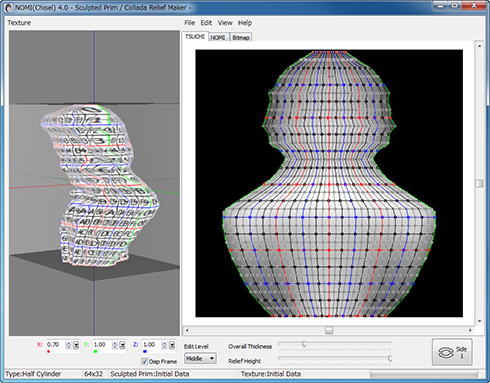
In the TSUCHI tab, the elevations are changed by adjusting the control points.
NOMI
In the NOMI tab, the elevations are changed by drawing on the map with a pen.
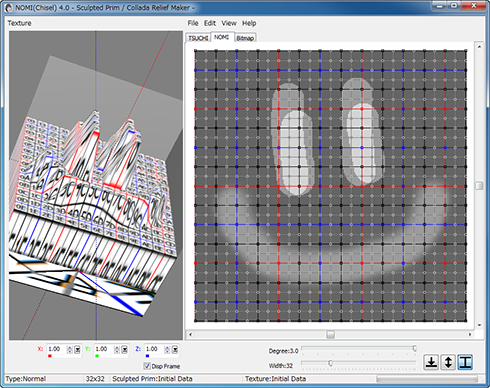
The following functions are available by clicking the right button of the mouse which displays a popup menu.
- Absolute Height
- You can draw absolute height.
- Relative Height
- You can adjust the present height.
- Gaussian Blur
- You can obscure/soften height.
- Height Pick
- You can set the height of the specified position as the height of Absolute Height.
- Pen Height/Degree
- You can specify the level of the attribute of the pen.
- Pen Width
- You can specify the width of the pen.
THE MENUS IN NOMI
[Texture] (On the far left of the menu bar)
- Reset
- It returns to the status when starting.
- Load
- Texture is loaded. Software resizes the file to 512x512.
The usable file types are JPEG/PNG/BMP/PSD. - Save
- A texture is saved in the size 512x512 PNG format.
- Divided Save
- While you are editing two or more sculpted prims, a texture is divided and saved for every sculpted prim from the texture file.
[File]
- New Project
- It returns to the status when starting. You can choose from several types.
- Normal
- The conventional Relief
- Plane
- Relief of plane
- Plane with border
- Relief which attached the edge by plane
- Half Sphere
- The sphere in which the control point of the same number has been arranged at the front and the back.
- Half Cylinder
- The cylinder in which the control point of the same number has been arranged at the front and the back.
- Reset Points
- Only Control point returns to the status when starting.
- Load Base Picture
- Software reads the picture used as relief. The usable file types are TGA/JPEG/PNG/BMP/PSD.
- Load Sculpted Prim
- Sculpted Prim Texture is loaded from a file made previously. The file types which can be read are .tga .png .bmp and NOMI Template Files (.obj or .txt)
*The size of Sculpted Prim must be either of 64x64, 128x128, 256x256, and 512x512. - Save Sculpted Prim
- A sculpted prim bitmap (.tga or .png), .obj file, and NOMI export(.txt) file andCollada file for mesh of Second Life are specified and outputted.
*An output sculpted prim bitmap's size is either of 64x64 and 128x128. Any .obj files can use Wings3D.
When you select it, you can select following option.
*You can save Collada file for Mesh of Secondlife. The same UV map as the sculpted prim is outputted. Only High of LOD is outputted.
- Scale
- You can set the scale of the object.
- Hard Angle
- You can specify the hard angle of normal vector.
- The optimized vertices
- The vertices are optimized. Almost the same UV map as the sculpted prim is outputted.
- Save .dae and .obj file
- The optimized OBJ file is outputted together. Because the Collada file and the OBJ file use the same texture file, you can use it by SOMATO.
- Setup
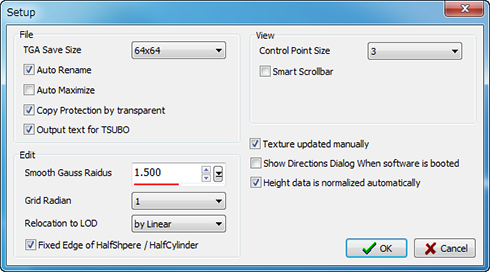
- TGA Save Size
- You can set up the TGA size of file to save. 64x64 is the recommended size.
- Auto Rename
- When saving a file, you can change the name of a file automatically so that it may not be overwritten.
- Auto Maximize
- You maximize a sculpt-map file automatically and saved.
- Copy Protection by transparent
- When a Prim is modified, you can make it transparent to prevent the texture from being copied by screen capture.
- Output text for TSUBO
- NOMI outputs the text information for reconstructing multiple prims in Second Life. (You can use it with TSUBO.)
- Smooth Gauss Radius
- You can set up the level of Gauss smoothing.
- Grid Radian
- The Radian of the grid when you rotate the object or control points which you chose, pressing the Shift key is specified.
- Relocation to LOD
- You can choose the way of rearranging control points according to Level of Detail. Edit Level uses this setting.
- --None
- The control points aren't rearranged.
- --by Linear
- The control points are rearranged by linear.
- --by Parent
- The control points stick to the control point of the standard.
- Fixed Edge of HalfSphere / HalfCylinder
- When you use wrap, edge was fixed to 0.
- Control Point Size
- You can set up the control point size.
- Smart Scrollbar
- you can use Smart Scrollbar on Edit pane.
- Texture updated manually
- You can escape delay by automatic updating.
- Show Directions Dialog When software is booted
- NOMI shows you a Directions Dialog When NOMI is booted.
- Height data is normalized automatically
- When you load height data, it is normalized automatically.
- Exit
- The program is closed.
[Edit]
When you choose more than one control point, the following functions are available by clicking the right button of the mouse which displays a popup menu. When you don't select any control points, this popup menu is not enabled.
- UNDO/REDO (not on right click popup menu)
- There is a 256-step UNDO and REDO function available.
- Align
- Chosen control points are lined up on the horizontal / vertical axis.
- Equal Columns
- The selected control points are rearranged at equal intervals for every line.
- Equal Intervals
- The interval of three or more selected control points is evenly arranged.
- Equal Distances
- The control points of the selected line are rearranged at equal intervals in accordance with the path.
- Lock/Unlock
- You can set up so that the selected control point may not move.
- Select
- You can choose all the control points, or you can reverse selection.
- Smooth
- You can smooth disorderly selected control points by three methods.
- Gauss Smooth
- Moving Average
- Horizontal Moving Average
- Vertical Moving Average
- Magnet
- The selected control points are pulled and collected to a single point which can be moved. All the points gathered there will be moved together.
- Flip Height Data
- The height data is reversed.
- Wrap
- The control points are rearranged so that HeightData may be wrapped.
- Rotate Object
- You can use it by Half Sphere and Half Cylinder. You can replace the back with a relief front.
[View]
- Zoom
- You can expand the editing screen. You can change magnification by using the wheel of the mouse also.
- Grid
- You can add a grid. The control points will snap to the grid.
- Level of Detail
- The level of detail is displayed in three steps.
- Load Height Data
- Software reads height data. Software changes the read picture into the gray scale of 256x256. The background of the display becomes the data on height. Black is low and white is high. And you can load Terrain File of Second Life(*.RAW).
- Save Height Data
- Height data are saved in a .tga/.png file of the gray scale of 256x256.
Keyboard Operation
- Move edit pane
- If you press space key and drag the mouse, view point of edit pane is moved.
- Zoom edit pane
- If you press "+" or "-" key, edit pane is zoomed.
- Move
- If you press an arrow key, the selected control point is moved 1 pixel.
If you press an arrow key and the Shift key simultaneously, it will move 8 pixels.
If you press the page up key and the page down key while using the TSUCHI tab, a control point will be moved in the depth direction.
Tutorial
1. Making a NOMI relief map
Preparation:
One image: Prepare the image without white space around it.
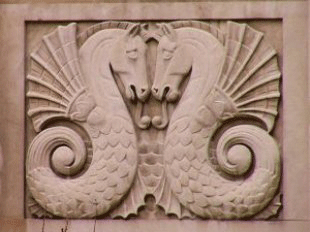
from stock.xchng
Procedure:
1) Please boot NOMI.
2) Select "Load Base Picture" on the File menu, and NOMI reads the image which you use as relief.
You can use Photoshop file, and JPEG and a PNG file as the base picture. It resizes automatically.
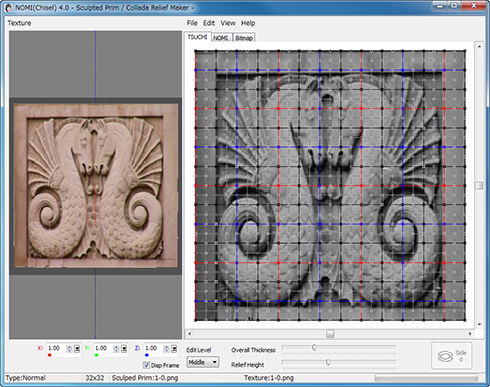
3) Height is automatically decided by the brightness of the image.
If you select "Flip Height Data" on the edit menu, Height data is reversed.
If you move the two trackbars at the bottom of the edit pane, the height and the thickness of relief are adjusted.
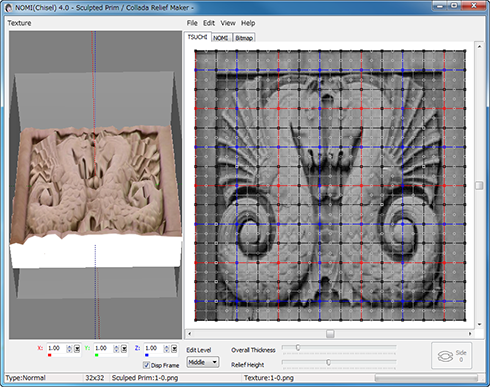
4) Select Save on the Texture menu to output the texture.
The image is outputted as a TGA file of 512x512. Because the original image is not taking the solid structure of relief into consideration, be sure to save a texture.
Because some side areas and the back side become white, please edit with your favorite graphic program.
5) Select Sculpted Prim on the File menu to output the sculpt map file.
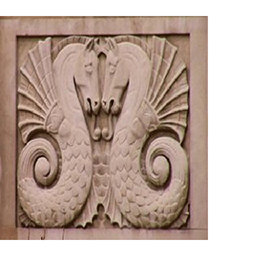 Texture |
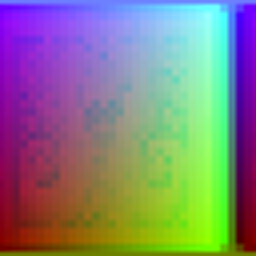 Sculpted Prim |
6) Upload two files what you saved. And apply them to your object.
2. The solidified map
Preparation:
Obtain a map picture such as those found on The Global Land One-km Base Elevation (GLOBE) Project.
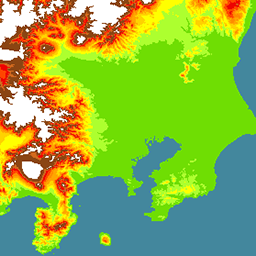 Map image |
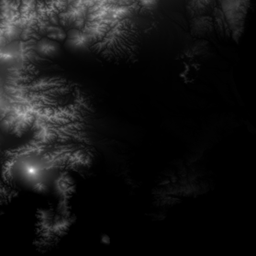 The image of the height data of the map image |
The image which saved the height data on a map by gray scale (the same size as the map image) Black is low and white is high.
Procedure:
1) Please boot NOMI.
2) Select "Load Base Picture" on the File menu, and NOMI reads the map image.
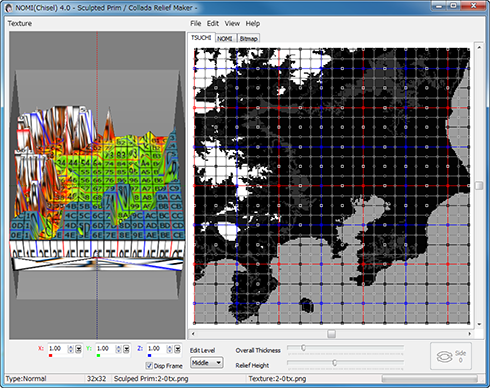
3) Select "Load Height Data" on the View menu, and NOMI reads the image the height data of the map.
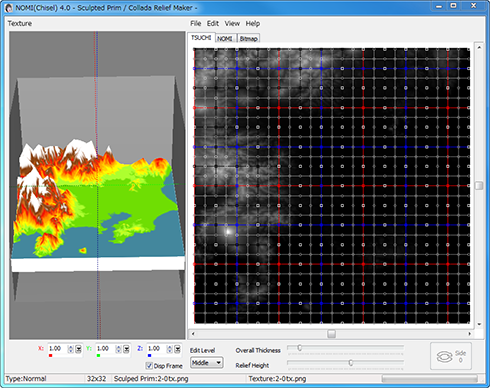
4) Move the trackbars at the bottom of the edit pane, and the Height and the thickness of relief are adjusted.
5) Select Save on the Texture menu to output the texture.
6) Select Sculpted Prim on the File menu to output the sculpt map file.
7) Upload two files what you saved. And apply them to your object.
3. Customizing Height data
Preparation:
One image
Procedure:
1) Please boot NOMI.
2) Select "Load Base Picture" on the File menu, and NOMI reads a map image.
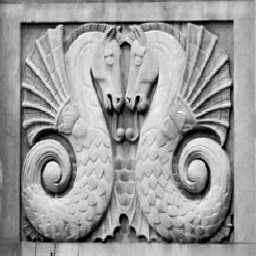
You can use Photoshop file, and JPEG and a PNG file as the base picture. It resizes automatically.
Height is automatically decided by brightness of a picture.
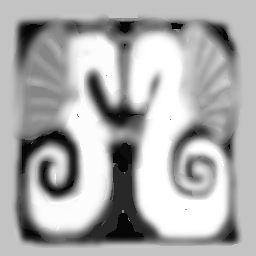
3) On Nomi tab, adjust the height data on a picture.
 |
 |
4) Select Save on the Texture menu to output the texture.
5) Select Sculpted Prim on the File menu to output the sculpt map file.
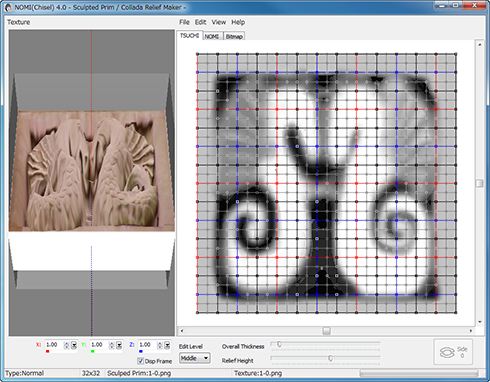
6) Finally, upload the two files that you saved to Second Life, and apply them to your object.
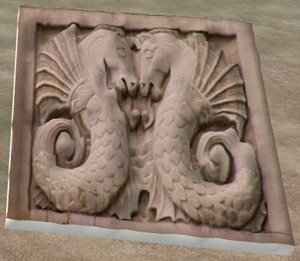 SL Image |
4. Adjusting a mesh
Preparation:
Obtain one image
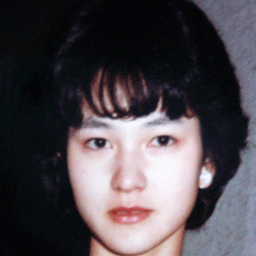
Procedure:
1) Please boot NOMI.
2) Select "Load Base Picture" on the File Menu to load the image which you use as relief.
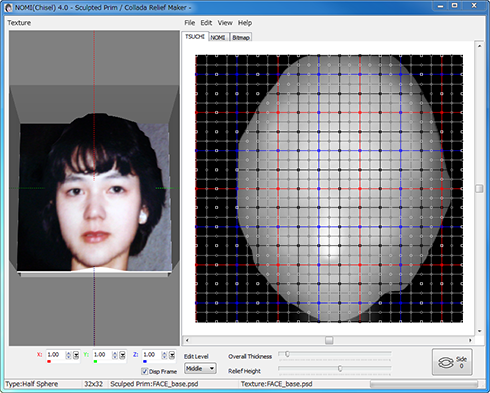
3) On Nomi tab, please adjust the height data on a picture.
4)Select Wrap on the Edit menu.
Control points are automatically moved to wrap around the edge of the image.
The form of Nomi can be transformed if the control point of every end is moved.
The smoother surface can be made if the position of a control point is changed.
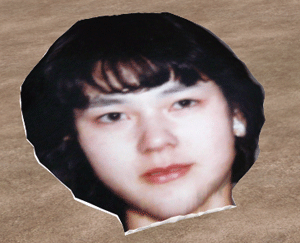
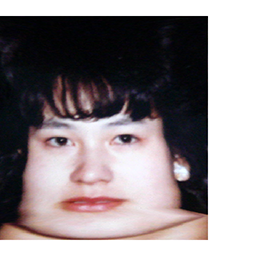 Auto Modified Texture |
 SL Image |
History
01/11/20
- The operating environment has been changed to Windows 10.01/16/20
- The operating environment has been changed to Windows 8.1/10.10/29/15 4.49
- Corresponding to changes in the Windows OpenGL driver.11/19/11 4.0.48
- The function to save Collada Physics shape file was added.- The function to save Lowest LoD file was added.
10/01/11 4.0.47
- The function of saving LOD Collada file corresponded to Mesh Release 2.- The bug of the function to Load Texture was fixed.
07/25/11 4.0.46
- The bug of the Collada output was fixed.07/16/11 4.0.45
- The function of saving collada with LoD was changed.11/12/10 4.0.43
- The interface of the edit pane was improved like KUMIKI.- Arrangement of the normal type control points was changed.
- Wrap on the edit menu was added.
- HalfSphere and HalfCylinder type have two height data.
- The Edit Level function like TATARA was added.
- The Texture Update function was accelerated.
- The function which outputs a Collada file (.dae file) was added. You can make the Mesh of Second Life.
06/12/10 3.0.28
05/03/09 2.0.21
09/30/07 1.02
- first beta releaseTrial & Buy
A trial period is for three days. In a trial period, you can't output Sculpted Prims or Texture Files or Collada Files.
When starting software, a dialog box asking for a serial code (license) is displayed.
After the trial period has passed, it becomes impossible to start.
Please purchase NOMI 4.0 Serial Code (license) from the NOMI Serial Box in-world at: KANAE PROJECT Shop.
Credits
- GLScene http://glscene.sourceforge.net/wikka/HomePage
- GLScene is released to the public as open-source under Mozilla Public License. http://www.mozilla.org/MPL/
- Graphics32 http://www.graphics32.org
- Graphics32 is released to the public as open-source under Mozilla Public License. http://www.mozilla.org/MPL/
- ImageEn
- by HiComponents 1998-2010
Thanks to KJ Georgette for help with this Readme file.